Wednesday, February 1, 2012

Vmware Vsphere Host(s) suddenly show as disconnected


I had an issue where my vsphere hosts would suddenly appear as disconnected in vcenter.  I am running vsphere 5 esxi on cisco C200-m2 servers.  Every guest that was running on that host would show as disconnected as well.  This was a ticking time bomb, because if I left it in this scenario the guests would eventually crash and the host would stop responding all together as well.  The heavier the load on the server the quicker this would occur.  In my environment I have 5 servers, and with an even load, my server would crash approximately every 5-7 days, and each time it was a different host.  When I put 2 in maintenance mode to do some troubleshooting it crashed in <36 hours.  This was a really painful issue because I would have to run around the floor letting users know to save their work as I would have to run a power cycle from the remote access card which would hard crash all of the desktops and servers running on this server.  Keep in mind that I am 99% virtual here, desktops and servers, so this was very painful.  The only way I was aware that there was an issuu was by seeing the disconnected state while in vcenter, or if a user rebooted their vdi it wouldn’t come back online, or the guests would eventually crash triggering an alert.  The monitors that we have in place were unable to detect this scenario to lete me know that it was in this zombie state.  Vmware and cisco worked on this issue for a few weeks, cisco pointed me to the following KB from vmware three weeks ago, http://kb.vmware.com/selfservice/microsites/search.do?language=en_US&cmd=displayKC&externalId=1030265

I followed the powercli method (must have missed the console method by accident) and the issue still occurred.  After a few weeks of working with vmware it was determined that the powercli method was written incorrectly and the console method was written correctly.  After running the console method the problem has been resolved, and vmware also just updated the article to correct the powercli method.

Vmware view client not connecting for home users

Vmware view 5 client and Norton internet security

I had a few users who had difficulty connecting to vmware view from their home pc. They were running windows 7, and after it installed they could launch the client, then they could type in their username and RSA passcode, and then after hitting connect the vmware view client would just disappear. After digging around I suspected that Norton internet security was getting in the way. Instead of poking the appropriate hole, I just disabled it first, and after successfully connecting to vmware view, I decided to uninstall the program. I typical use the free Microsoft security essentials which did properly allow view to connect. I don’t see any kb’s out there yet that reference this as an issue, and I am sure someone can find the correct hole to poke to make it work, however to me it looked like it was setup properly and allowing vmware view access yet it wasn’t working.

Friday, January 13, 2012

wyse p20 login to windows kicks back out to login screen

I had users who had problems logging into their view desktops while using p20 wyse devices and vmware view 5. After typing in their username and password it would make the sounds for windows login, sometimes flash the login screen, the monitors would go black, and then it would kick them back out to the login screen. Before I figured out what was going on I found out that restarting their computer would solve the problem. After digging around on the internet, I found a few posts that mentioned this may be isolated to teradicci clients (p20) however when the windows desktop was setting the monitors to sleep (default 15 min) the view login was not able to wake them back up properly.

In order to resolve this create a COMPUTER gpo that sets the monitors to never sleep for all windows desktops that are using this type of setup.

Slow Windows 7 Desktops on View 5 vsphere 5 hardware v8

After updating my windows 7 desktops to vsphere hardware version 8 (v8) all of my users began to complain of VERY slow activity in windows including delays in typing, delays in dragging windows around, and overall general responsiveness. VMware support passed along an INTERNAL KB that explains how to fix this issue, which did solve the issue for me.The following workaround has been verified where you will need to make changes to the .vmx file (the VM's configuration file.)

1. Verify that SSH remote access is enabled in the Security Profile of the ESXi host 2. Connect to the ESXi host with an SSH client with the root account 3. Once logged in, change to the path of the virtual machine folder (for example: cd /vmfs/volumes/Storage1/vmname/ ) 4. In this directory, you should find the VM's configuration file with the .vmx extension.
5. Use vi to open and edit the vmx (example, vi vmname.vmx) 6. Add the following line at the end of the .vmx file:

mks.poll.headlessRates = "1000 100 2"

7. After making the change on the .vmx file, you will need to completely power off the VM, and power it back on so that it re-reads the .vmx (a restart within the OS level will not re-read the .vmx file)

Additional steps will be needed if this applies to linked clones. You will still need to follow steps 1-6 above on the parent VM's .vmx file.

7B. Power down the parent VM
8. Take a new snapshot
9. Recompose the pool to the new snapshot

After the recompose is complete, the changes made should now be applied to the linked-clones.

Thursday, January 5, 2012

Vmware view 5 and Wyse P20

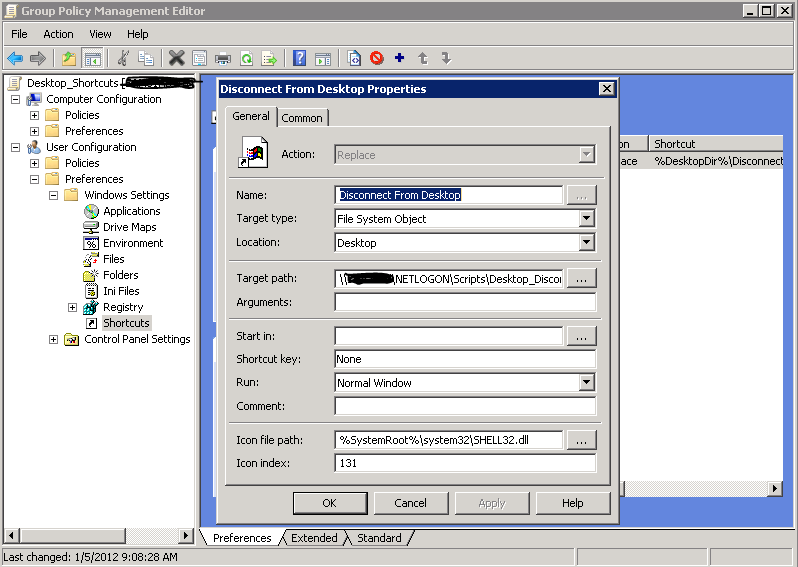
Add a disconnect icon for all users in a vmware view environment

I am using view 5 on wyse p20’s and I needed the ability for my users to disconnect from their desktop for receptionists who rotate desks, and for users connecting from home. View 5 seems to have a few issues allowing a user to connect from the p20 or from home is a session is already connected. After several attempts the user can usually get into the session, however I have noticed solid black screens after logging in and quick disconnects from the p20 if it can’t display the windows desktop properly.

As a fix I decided to deploy a disconnect icon to all users through active directory. Here are the steps that I took
1. First create a disconnect batch script in your netlogon share (or somewhere else all users can access)
a. The only line you need in the batch file is:
%systemroot%\system32\tsdiscon.exe
2. Then create a group policy in AD and apply to your employee user OU

3. I selected icon 131 which was a red X, however feel free to select any icon of your choice. A full listing of icons and their associated number is found at http://dl.dropbox.com/u/5036238/Win%207%20shell32.dll%20icons.jpg
4. You can either run gpupdate /force to see if it works, or logoff and log back on.
5. Inform your users that this is the best option to use when finished for the day or finished with their remote connection. Also make them aware that this will not close anything on their desktop, it will keep all programs and documents open until they connect again.

Wednesday, January 19, 2011

VAAI in Vsphere 4.1 is turned on by default and can break your recoverpoint constancy groups!

Beware, VAAI in Vsphere 4.1 is turned on by default and can break your recoverpoint constancy groups!

UPDATE: Scott Lowe just wrote me back and confirmed that the version of flare code that will resolve this issue is 4.30.000.5.509

We recently had a problem where our Exchange Consistency groups in recoverpoint were all stuck at initializing 0% for several days out of the blue after running for over a year. I tried to force a re-sweep, I tried to rebuild the Constancy groups, however it was still stuck at 0% initialized. The fix from EMC support was to disable VAAI in vmware, steps are below.
We are using the following:
Vsphere 4.1
Flare 30 4.30.000.5.507
Recoverpoint 3.3 SP1
And Clariion Splitters

EMC Case Notes:
Notes: I send the customer a email asking if VAAI is on?
Just got a update from engineering stating that this is a know issue.
This case was closed and defined as a bug

From EMC Primus Article emc255099
ESX/ESXi 4.1 VAAI (vStorage APIs for Array Integration) - Hardware Acceleration features (Locking , Pre-zero, Copy) are only supported with RecoverPoint 3.3 SP1 and up that uses CLARiiON FLARE 30 type 2 patch and up and a CLARiiON splitter.

From EMC Recoverpoint Replicating Vmware on page 31:
vSphere 4.1 introduces vStorage API for Array Integration (VAAI). By
default, VAAI commands are enabled upon installation. If your
release of the RecoverPoint splitter does not support a VAAI
command, that command must be disabled in all ESX servers. Failure
to disable an unsupported VAAI command can cause data
corruption, production data being unavailable to ESX hosts,
degraded performance, and switch reboots.
For RecoverPoint support of VAAI commands, refer to Table 3 on
page 7. Use the following procedure to disable VAAI commands that
are not supported by your configuration.
To disable VAAI commands:
1. In the vSphere client inventory panel, select the host.
2. Click the Configuration tab and from the Software menu, select
Advanced Settings.
3. To disable Hardware-Assisted Locking, click VMFS3, and set the
value of VMFS3.HardwareAcceleratedLocking to 0.
4. To disable Full Copy, click DataMover, and set the value of
DataMover.AcceleratedMove to 0.
5. To disable BlockZeroing, click DataMover, and set the value of
DataMover.AcceleratedInit to 0.
6. To save the changes, click OK.
32 EMC RecoverPoint Replicating VMware
Management tasks and procedures
7. Make sure every unsupported command on every replicated ESX
Server is disabled.

Wednesday, November 17, 2010

How To Install and Configure EMC Fast Cache on a Clariion

How to install and configure EMC Fast Cache on a Clariion

The first step is to make sure you are using Unisphere and are on Flare 30. Without flare 30 none of these steps are possible.

Then connect your EFD disks, for me it was 5 100 gig flash disks, which will build 2 raid 1 mirrors and 1 hotspare providing us 200 gigs of fast cache.

Once your fast software arrives you will receive it on cds. Each cd contains a .ena file which you will need to copy from the cd into a folder on the computer that you will be using unisphere service manager. My default location that I had to copy the software to was C:\EMC\repository\Downloads

Then from inside Unisphere click on Launch USM under Service Tasks


emc support told me to just select all 4 disk as raid 1, and behind the scenes it will create 2 raid 1 mirrors.

this next screen may give you a scare, it did for me and I called support. It should only disable SP cache for a few seconds/minutes as it rebuilds the memory map on the ram to include the SSD disks. For me it only took about 2 minutes in total and didn't appear to impact performance.


Now you should see that it is enabled, and you also need to assign a hotspare

select manual and select the SSD disk as the hotspare

now go to the properties of the LUN that you want to enable fast cache on, and check fast cache, the enable caching should also automatically check itself off, hit apply and sit back and let fast cache do the work for you.


You can use navi analyzer to view Fast cache statistics to ensure that it is working properly.